When you begin to learn automation testing, one of the first things you will come across are Selenium methods. These are the basic building blocks that let Selenium communicate with browsers and web apps.
Selenium methods let you click a button, enter text into a textbox, get data from a webpage, navigate between pages, you name it.
For beginner it’s very important to understand these methods properly as almost every automation script depends upon these methods. Once you learn the common Selenium methods, writing your automation scripts will be a lot easier and more structured.
In this guide, we will discuss the most important Selenium methods in Java, along with simple explanations and practical examples.
What is Selenium?
Selenium is one of the most popular open source automation testing tools to test Web applications. It allows testers and developers to automate browser actions like clicking buttons, entering text, navigating between the pages and validating web elements.
Selenium supports a variety of programming languages like: Java, Python, JavaScript, C#, Ruby
Compatible with all major browsers such as: Chrome, Firefox, Edge, Safari.
What is Selenium WebDriver?
Selenium WebDriver is the main part of Selenium. It is a tool for automating browsers that communicates directly with the browser and carries out user actions.
In simple words, Selenium WebDriver acts like a real user interacting with the browser.
What is a WebElement in Selenium?
A WebElement represents any HTML element present on a webpage.
Examples of web elements include: Textboxes, Buttons, Links, Checkboxes, Dropdowns, Radio buttons
Selenium interacts with these elements to perform automation tasks.
For example:
- Typing into a text field
- Clicking a button
- Reading text from a webpage
All these actions happen through WebElements.
How Selenium WebDriver Works?
Selenium WebDriver acts as bridge between your test script and the browser
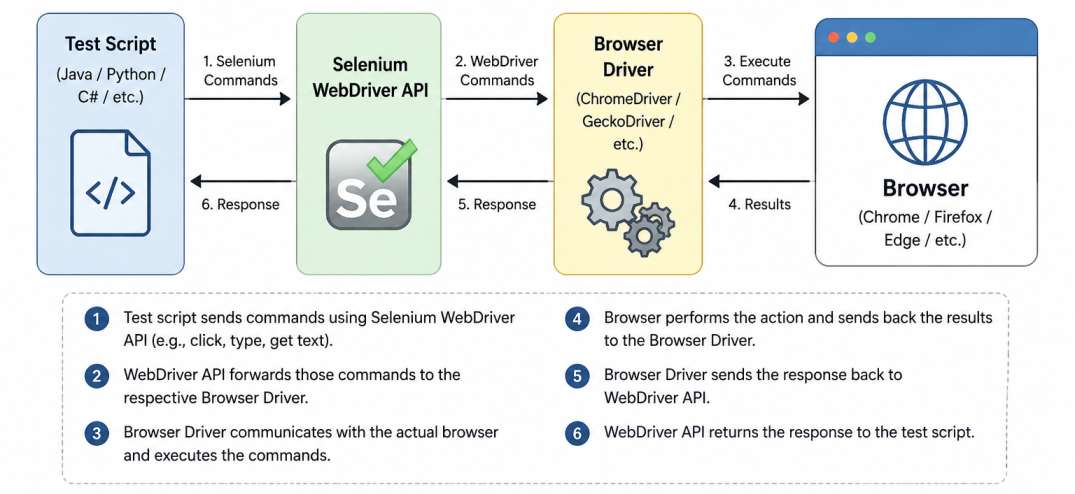
This architecture helps Selenium interact with browsers efficiently.
How to Find Elements in Selenium with Java?
Locating web elements is one of the key concepts of Selenium Automation Testing. Before Selenium can click a button, type text or validate information, it needs to locate the element on the page first.
This process is called finding elements.
In selenium there are different locator strategies to find the elements. They are: ID, Name, Class Name, XPath, CSS Selector, Tag Name, Link Text and Partial Link Text
In order to develop stable and reliable automation scripts, you need to understand how locators work.
What is findElement() in Selenium?
Selenium uses the findElement() method to locate a single web element on a webpage.
driver.findElement(By.id("username"));In above example:
- findElement() searches for the element
- By.id() defines the locator strategy
- “username” is the locator value
What Are Selenium Methods?
Selenium methods are pre-defined functions given by Selenium WebDriver that testers use to perform actions on web applications.
With Selenium methods you can do the following:
- Open browsers
- Click on buttons
- Enter text to input fields
- Navigate between pages
- Handle alerts
- Handle frames
- Get Data of Element
Without Selenium methods, automation testing would not function because Selenium would have no way to communicate to the browser.
Why Selenium Methods Are Important?
It is important to understand the Selenium methods as they are the basics of automation testing.
They help you out.
- Efficiently develop automated scripts:
- Easily interact with web elements
- Decrease the manual test effort
- Write reusable test cases
- Efficiently handle dynamic web pages
It is not possible to do automation testing without the Selenium methods.
Types of Selenium Methods
Selenium has different types of methods depending on the functionality.
The most commonly used categories are:
- Browser methods
- Navigation methods
- WebElement methods
- Window handling methods
- Alert handling methods
- Frame handling methods
- Wait methods
Let’s understand each of the categories one by one.
Browser Methods in Selenium
Browser methods are used to control browser-related actions.
These are typically the first Selenium methods that beginners learn.
1. get()
This function is used to open specified URL in the browser window
driver.get("https://codetoautomate.com");2. getTitle()
This function is used to get the title of the current page in browser
String title = driver.getTitle();
System.out.println(title);3. getCurrentUrl()
This function is used to get the URL of the current page in browser
String url = driver.getCurrentUrl();4. getPageSource()
This function is used to get the source code of the current page
String pageSource=driver.getPageSource();5. maximize()
This function is used to maximize the browser window
driver.manage().window().maximize();6. minimize()
This function is used to minimize the browser window
driver.manage().window().minimize();7. fullscreen()
This function is used to fullscreen the browser window
driver.manage().window().fullscreen();8. close()
This function is used to close the current page in the browser window
driver.close();9. quit()
This function is used to quite the browser window
driver.quit();Navigation Methods in Selenium
1. navigate().to()
This function is used to navigate to a new page in current browser window
driver.navigate().to("https://www.codetoautomate/blog.com");2. navigate().back()
This function is used to navigate to the previously visited page in the current window
driver.navigate().back();3. navigate().forward();
This function is used to navigate to the web page visited after the current page in browser window
driver.navigate().forward();4. navigate().refresh();
This function is used to refresh the current page in browser window
driver.navigate().refresh();WebElement Methods in Selenium
1. click()
This method is used to click on element
WebElement element=driver.findElement(By.id("locator-id"));
element.click();2. sendKeys();
Entering text in a text box
WebElement element=driver.findElement(By.id("locator-id"));
element.sendKeys();3. clear()
This method is used to clear the value in a textbox
WebElement element=driver.findElement(By.id("locator-id"));
element.sendKeys();
element.clear();4. GetAttribute
This method is used to get attribute value of web element’s and it returns the value as a string.
WebElement element=driver.findElement(By.id("textbox-id"));
String value = element.getAttribute("id");5. getTagName()
The getTagName() method is used to get the tag name of the web element and returns a string value as its result.
WebElement element=driver.findElement(By.id("textbox-id"));
String value = element.getTagName();6. isSelected()
The isSelected() method checks that if an element is selected on the web page or not. It returns a boolean value (true) if selected, else false for deselected.
WebElement element=driver.findElement(By.id("textbox-id"));
boolean flag = element.isSelected();7. isDisplayed();
The isDisplayed() method is used to check whether an element is displayed on a web page or not. It returns a boolean value (true) if the target element is displayed otherwise returns false.
WebElement element=driver.findElement(By.id("textbox-id"));
boolean flag = element.isDisplayed();8. isEnabled()
isEnabled() method is used to check if the web element is enabled or disabled within the web page.
This method returns “true” value if the specified web element is enabled on the web page otherwise returns “false” value.
WebElement element=driver.findElement(By.id("textbox-id"));
boolean flag = element.isEnabled();9. select (Dropdown)
The select class can be used to work with the dropdown elements as you’ll be able to choose the option using the various Selenium commands.
Select select = new Select(driver.findElement(By.id("dropdownId")));
select.deselectByVisibleText("visibleText");
select.deselectByValue("optionValue");
select.deselectByIndex(3);10. getOptions()
This method gets all the options belonging to the Select tag.
Select select = new Select(driver.findElement(By.id("dropdownId")));
List<WebElement> ddList = select.getOptions(); 11. isMultiple()
This method informs whether the Select element supports multiple selection options at the same time or not.
Select multiselect = new Select(driver.findElement(By.id("multiselectId")));
Boolean flag=multiselect.isMultiple();12. getFirstSelectedOption().
This method return the first selected value using the above command
Select select = new Select(driver.findElement(By.id("dropdownId")));
select.selectByVisibleText("visibleText");
String str=select.getFirstSelectedOption().getText();13. getAllSelectedOptions
This method return a number of selected options.
int count=select.getAllSelectedOptions().size();14. deselect
This method is used deselect the options which is selected
Select select = new Select(driver.findElement(By.id("dropdownId")));
select.deselectByVisibleText("visibleText");
select.deselectByValue("optionValue");
select.deselectByIndex(3);Window Methods in Selenium
To automate the actions across different windows of the browser. We have to switch to another window, pass the driver instance to another window.
Note: In order to switch to another window, we have to first identify the tab we want to switch to.
1. getWindowHandle()
You can obtain the name of the current window by using this command as it will return the alphanumeric name of the current window which is unique for each tab/window.
String mainWindow = driver.getWindowHandle();2. getWindowHandles()
If there are multiple windows open and you want to retrieve the names of numerous window handles, you can utilize this command.
Set<String> allWindows = driver.getWindowHandles();3. size()
You can even find out how many windows are currently open using this command.
int windowCount=driver.getWindowHandles().size();4. switchTo()
The method switchTo() is used to change your focus to a different window, tab or iframe.
driver.switchTo().window(windowHandle)At the same time opens new tab/window and switch to it by using below commands.
Opens a new tab and switches to new tab
driver.switchTo().newWindow(WindowType.TAB);Opens a new window and switches to new window
driver.switchTo().newWindow(WindowType.WINDOW);Window Alert Methods in Selenium
1. alert();
The above command can be used to switch to the alert window.
driver.switchTo().alert();2. accept()
You can use this command with the previous command to switch to the alert window and accept the alert.
driver.switchTo().alert().accept();3. alert().sendkeys()
If you’re looking to enter a specified value into the alert box, you can use this command.
driver.switchTo().alert().sendkeys(String);4. alert().getText()
You can even retrieve the string content of the alert by using the above Selenium command.
String str=driver.switchTo().alert().getText();Frame Methods in Selenium
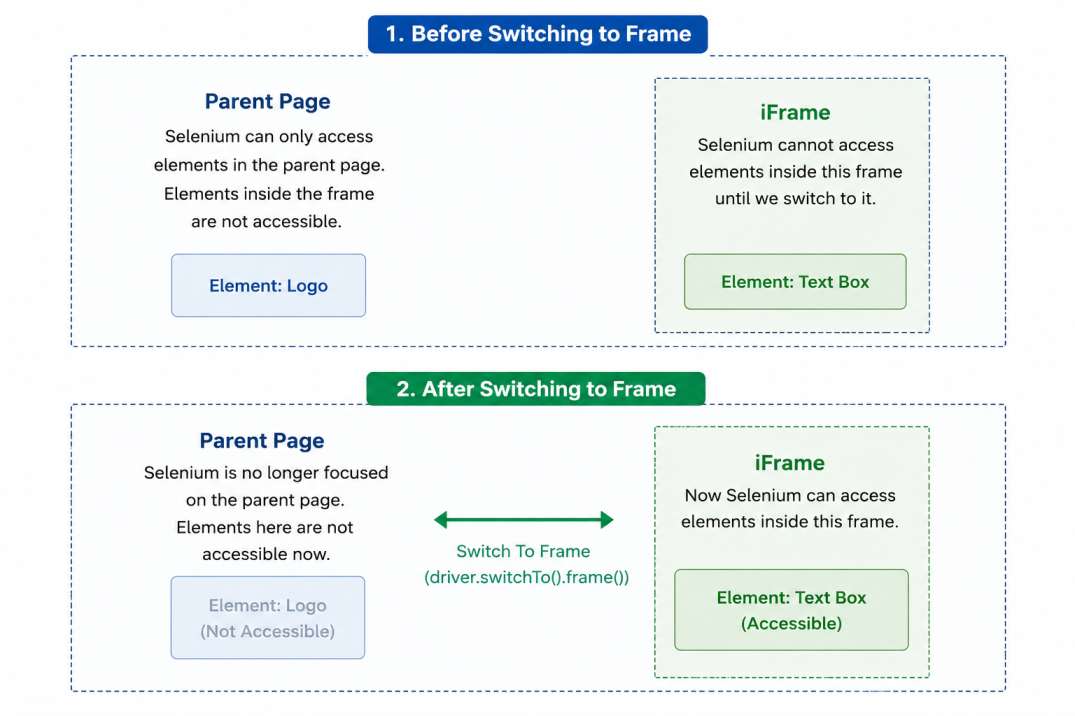
An iframe is also known as an inline frame. It is a tag used in HTML5 to embed an HTML document within a parent HTML document. An iframe tag is defined using <iframe></iframe> tags.
The iframes are mainly used to insert content from external sources. For example, an advertisement, embedded videos, web analytics and interactive content
1. frame()
Frames Commands are those that can be used to perform operations on the frames as it helps us to switch from one frame to another and also perform actions on the particular frames.
As the name suggests, you can use the above command to switch to another frame.
driver.switchTo().frame(1);
driver.switchTo().frame("frameName");
driver.switchTo().frame("frameId");
driver.switchTo().frame(WebElement);2. defaultContent()
If you would like to go back to the current window from any frame, you can use this command.
driver.switchTo().defaultContent();3. parentFrame();
When it comes to switching to the parent frame, you can use the above command.
driver.switchTo().parentFrame();Wait Methods in Selenium
Imagine an action such as a page reloads or a form was submitted, the script would have to wait for a certain amount of time to ensure the action has been completed. That is where the Selenium commands for Synchronization come into play.
1. Thread.sleep()
This command is used to pause for a defined time. Time is defined in milliseconds for this method.
Thread.sleep(2000);2. implicitlyWait()
The Implicit Wait in Selenium is used to tell the web driver to wait for a certain amount of time before it throws a “No Such Element Exception”. Once we set the time, the web driver will wait for the element for that time before throwing an exception. It is a global wait.
driver.manage().timeouts().implicitlyWait(Duration.ofSeconds(10));3. explicitWait()
The Explicit Wait in Selenium is used to tell the Web Driver to wait for certain conditions (Expected Conditions) or maximum time exceeded before throwing “ElementNotVisibleException” exception.
WebDriverWait wait = new WebDriverWait(driver, Duration.ofSeconds(10));
wait.until(ExpectedConditions.visibilityOfElementLocated(By.xpath("xpath-string")));4. FluentWait
This command allows you to control two important aspects
- The maximum amount of time to wait for a condition to be satisfied along with the frequency at which to check if the condition has been satisfied or not.
- You can even configure the command to ignore specific types of exceptions whilst waiting.
// Waiting 30 seconds for an element to be present on the page, checking for its presence once every 5 seconds.
   Wait<WebDriver> wait = new FluentWait<WebDriver>(driver)
       .withTimeout(Duration.ofSeconds(30))
       .pollingEvery(Duration.ofSeconds(5))
       .ignoring(NoSuchElementException.class);

   WebElement element = wait.until(new Function<WebDriver, WebElement>() {
     public WebElement apply(WebDriver driver) {
       return driver.findElement(By.id("user"));
     }
   });
Tips for Using the Selenium Methods
To write better automation scripts:
- Use explicit waits instead of Thread.sleep()
- Use meaningful variable names
- Properly handle the exceptions
- Adhere to Page Object Model (POM) design
Beginners’ Common Mistakes
Many beginners have problems because they:
- No synchronization used in Test Script
- Use of wrong XPath expressions
- Use of Hardcoded values in Test Script.
- Ignoring exception handling.
- Use absolute XPath too much
You can prevent these mistakes by learning the Selenium methods in detail.
Conclusion
Selenium methods are the core of automation testing. All automation scripts use them to interact with browsers / web elements.
If you are serious about learning Selenium, you should take some time to practice these methods regularly. Start off with simple methods such as:
- get()
- click()
- sendKeys()
- getText()
Once you are comfortable start working on the advanced concepts like waits, alerts, frames etc.
Having a strong knowledge of Selenium methods will make your automation journey easy and will help you to build reliable test scripts with confidence.
FAQs
What is the difference between close() and quit() ?
close() closes the current browser window
quit() closes all browser windows and stops the WebDriver session
Why Wait Statements are Required in Selenium?
Wait methods allow Selenium to work with dynamic web elements which may take some time to load.

I’m Nishant Temburnikar, a Software Testing Engineer with 7.5+ years of experience in automation testing and quality engineering. Through CodeToAutomate, I shares practical tutorials, real-world testing insights, and interview preparation resources to help testers build their automation skills and grow their careers.